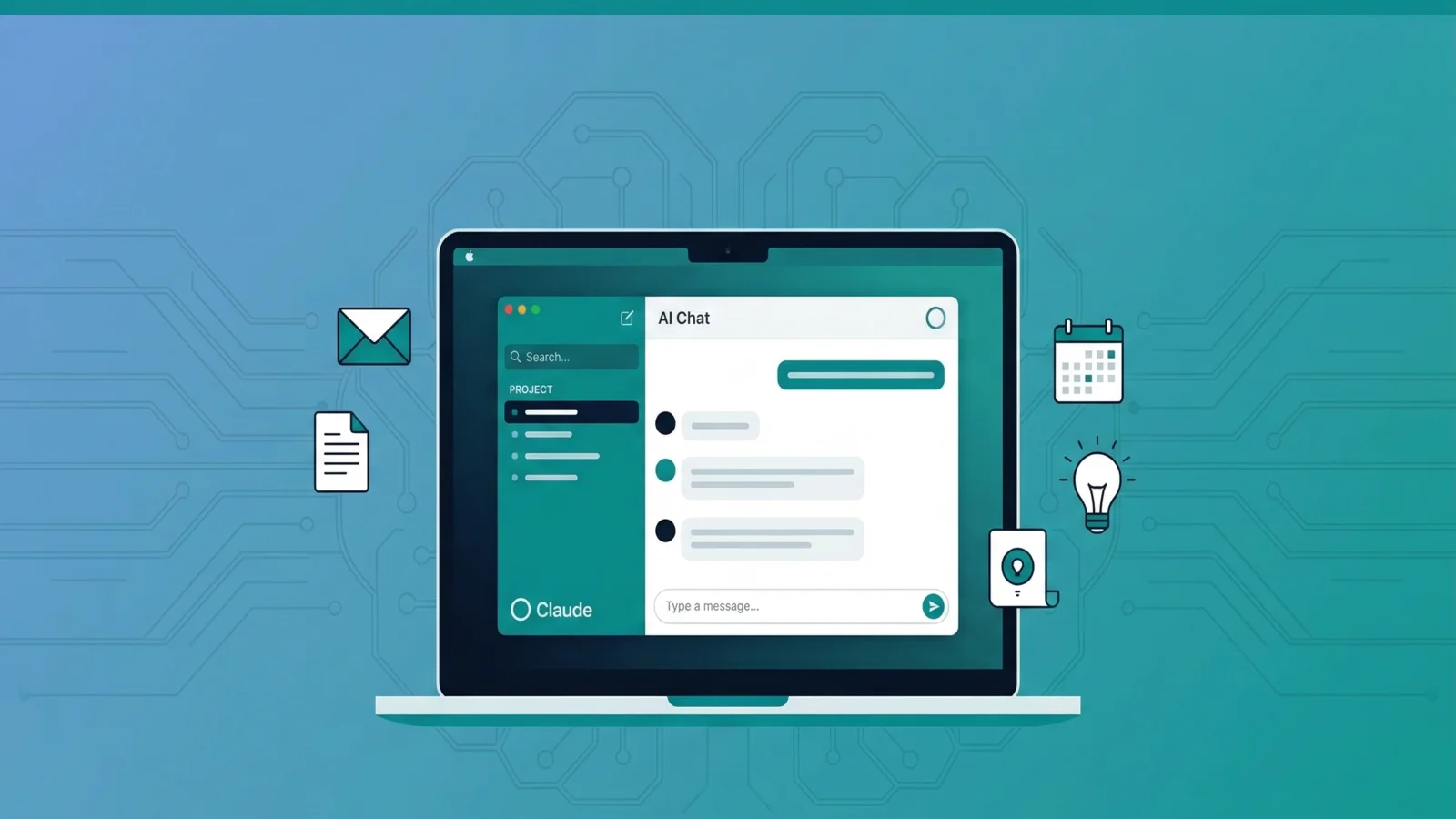
Claude Desktop is Anthropic's standalone AI assistant app. You can run Claude in your browser at claude.ai, but the desktop app gives you a native macOS experience, tighter file access, and a dedicated home for Cowork, the mode that lets Claude keep working on a task while you switch to other apps. Cowork reached the browser and mobile in July 2026, though plenty of owners still like keeping it in its own window.
This guide walks you through setting up Claude Desktop on macOS and organizing your first business project.
What You Get With Claude Desktop
Before we install, here's why the desktop app matters for your business:
- Projects: Group related conversations by client, department, or initiative. Add files and instructions that persist across every chat in that project.
- Cowork Mode: Hand Claude a task and let it work while you switch to other apps. The Claude Desktop app needs to stay open, but you can keep working and check back when it's done. Great for drafting emails, summarizing documents, or researching competitors.
- File Access: Drag files directly into conversations. Claude can read PDFs, spreadsheets, images, and code files.
- MCP Integration: Connect Claude to external tools like your file system, databases, or APIs using the Model Context Protocol.
The free tier gives you access to Claude with usage limits. The Pro plan ($20/month) unlocks higher limits, Cowork mode, and access to the most capable models. For business use, Pro is worth it.
Step 1: Download and Install
- Go to claude.com/download
- Click Download for macOS
- Open the
.dmgfile and drag Claude to your Applications folder - Launch Claude from your Applications folder or Spotlight (
Cmd + Space, type "Claude")
On first launch, you'll be asked to sign in with your Anthropic account. If you don't have one, create it. It takes 30 seconds.
Claude Desktop requires macOS 11 (Big Sur) or later. It runs natively on both Intel and Apple Silicon Macs.
Step 2: Create Your First Project
Projects are how you organize work in Claude Desktop. Think of them as folders that give Claude context about what you're working on.
- Click the Projects icon in the sidebar
- Click + New Project
- Give it a name (e.g., "Q1 Marketing Plan" or "Client Onboarding")
- Open Project Instructions (in the project settings). This is where you give Claude persistent context that applies to every conversation in the project
Here's an example set of project instructions for a small law firm:
This project is for Smith & Associates, a 3-attorney personal injury firm.
We're exploring AI tools to improve client intake and reduce missed calls.
Budget: $500-2,000/month for AI tools.
Key concerns: HIPAA-adjacent data handling, client confidentiality.
Every conversation you start inside this project will have these instructions as context automatically. No need to re-explain your situation each time.
Step 3: Add Project Knowledge
You can attach files to a project that Claude can reference in any conversation within it:
- Open your project
- Click Add Content or drag files into the project panel
- Supported formats: PDF, Word docs, text files, images, spreadsheets
What to add:
- Your business plan or one-pager
- Service descriptions or pricing sheets
- Client intake forms or templates
- Competitor research you've gathered
Each file can be up to 30MB. The total project knowledge has a token limit. If you hit it, prioritize the most important documents and remove less relevant ones.
Step 4: Set Up Cowork Mode
Cowork is the killer feature for business owners. It lets you give Claude a task and walk away.
- Start a conversation in your project
- Click the Cowork tab in the conversation
- Describe your task clearly
- Claude works on it while you switch to other apps, and you'll see a notification when it's done (keep Claude Desktop open)
Good Cowork tasks for small businesses:
- "Draft 5 follow-up email templates for leads who didn't respond"
- "Summarize this 40-page contract and flag any concerning clauses"
- "Research the top 10 AI chatbot platforms for customer service and compare pricing"
- "Create a weekly social media content calendar for March"
Open Claude Desktop, create a project called "AI Exploration," and ask Claude: "What are the top 3 AI tools I should consider for automating customer support in a small business? Compare pricing, ease of setup, and limitations."
Step 5: Customize with Personal Preferences
You can set preferences that apply to every conversation across all projects:
- Click your profile icon (bottom-left)
- Select Settings
- Navigate to Profile
- Add instructions about your communication preferences
Example instructions for a business owner:
I run a small dental practice with 12 employees. When I ask about AI tools,
prioritize solutions that are HIPAA-compliant and cost under $200/month.
Keep explanations non-technical — I'm not a developer. Always include
estimated setup time and ongoing costs.
Tips for Getting the Most Out of Claude Desktop
Be Specific With Your Requests
Instead of "Help me with marketing," try:
I need to write a Google Business Profile post about our new
teeth whitening service. Keep it under 100 words. Include a
call-to-action for booking. Tone: friendly and professional.
Use Projects for Different Contexts
Create separate projects for:
- Each major client or account
- Internal operations vs. client-facing work
- Research vs. content creation
Combine Cowork With File Uploads
Upload a document, then use Cowork to process it:
- Upload your Q4 financial report (PDF)
- Enable Cowork
- Ask: "Analyze this report. Create a summary with key metrics, trends, and 3 actionable recommendations for Q1"
What's Next
Now that Claude Desktop is set up, you're ready to start using AI in your daily workflow. Here are some natural next steps:
- Build a custom AI assistant: Set up a Claude Project that already knows your business, your voice, and your rules. Here's how.
- Find your highest-impact opportunity: Use our 15-Minute AI Audit to figure out where AI will save you the most time.
- Get your guardrails in place: Create an AI policy for your team and run through our security checklist before scaling up.
Pick one task you repeat every week (the same client questions, your weekly report, vendor research) and let Claude Desktop handle it. That's enough to start.